
Attachment Settings
The Attachment Settings section controls how files and images are handled when they are attached to records (such as job cards, customers, objects, or other modules).
These settings help manage storage usage and ensure system performance remains stable.
Accessing Attachment Settings
To view or change these settings:
- Open the Main Menu
- Go to Settings
- Select Attach
This opens the Attachement settings window.
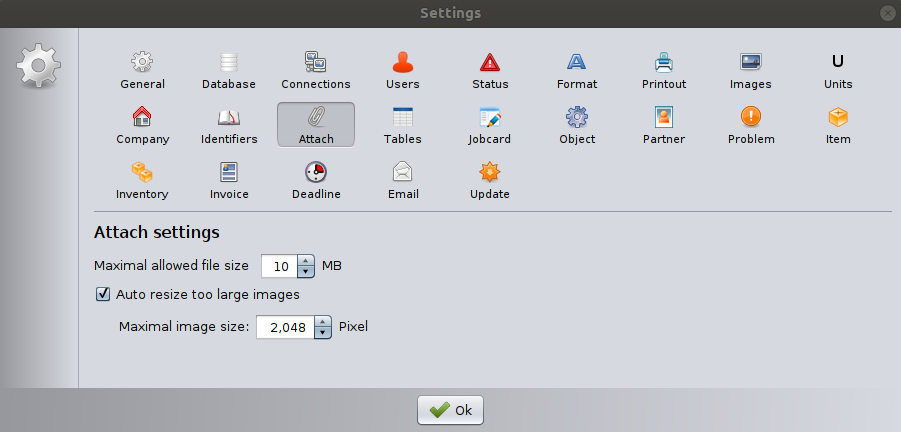
Maximal Allowed File Size
This setting defines the maximum file size that can be attached to a record.
- The value is specified in megabytes (MB).
- Example: 10 MB means files larger than 10 MB cannot be uploaded.
Why this matters
Limiting file size:
- Prevents database bloat
- Protects system performance
- Avoids excessively large backups
- Reduces network load in server–client mode
If a user attempts to upload a file larger than the allowed size, the system will block the upload.
Auto Resize Too Large Images
When enabled, the software automatically resizes images that exceed the defined maximum image size.
This applies only to image files (e.g. JPG, PNG).
Benefits
- Reduces storage usage
- Improves loading speed
- Keeps backups smaller
- Maintains consistent image quality
This option is recommended for workshops that frequently attach photos (e.g. vehicle damage images).
Maximal Image Size
Defines the maximum resolution (in pixels) allowed for uploaded images.
Example: 2048 pixels
- The system resizes the image so that its longest side does not exceed this value.
- Aspect ratio is preserved during resizing.
- Only applies if Auto resize too large images is enabled.
Recommended Setting
For most business use:
- 1600–2048 pixels is sufficient
- Higher values increase storage usage without visible benefit for printouts
Saving Changes
Click OK to apply the attachment settings.
Changes affect future uploads.
Existing attachments remain unchanged.
Best Practices
- Keep file size limits reasonable (5–15 MB is typical).
- Enable automatic resizing if users attach photos from smartphones.
- Avoid extremely large images to prevent slow backups.
- Monitor storage growth in server environments.
Important Note (Server–Client Mode)
In network mode, large attachments increase:
- Database size
- Backup time
- Network traffic between server and clients
Proper attachment settings are especially important in multi-user environments.