
Update Settings
The Update Settings section controls how software updates are installed and how the application behaves after an update.
These options help you manage updates in both single-computer and server–client environments.
Accessing Update Settings
To view or change these settings:
- Open the Main Menu
- Go to Settings
- Select Updates
This opens the Update settings window.
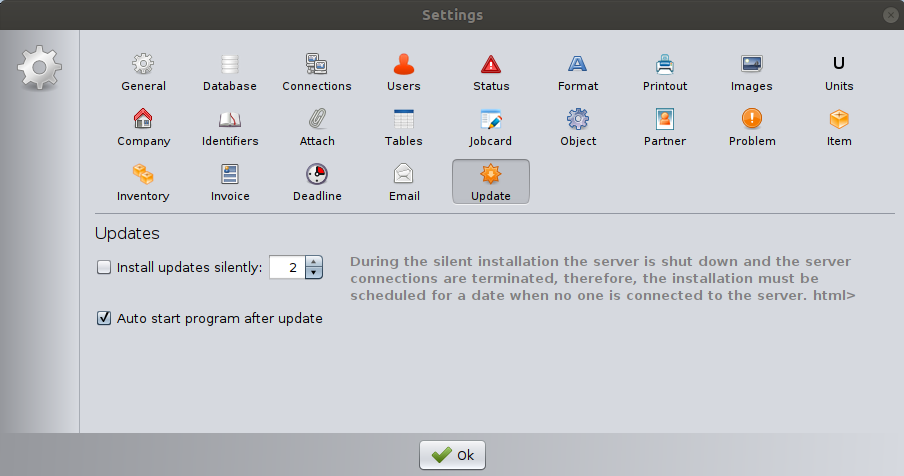
Install Updates Silently
When this option is enabled, the software installs updates automatically without user interaction.
The number field next to the checkbox defines the hour when the silent installation starts.
⚠️ Important (Server–Client Mode):
During silent installation, the server application is shut down and all active client connections are terminated.
For this reason, updates should be scheduled for a time when no users are connected to the server.
Silent installation is recommended only when you are sure the system is not actively in use.
Auto Start Program After Update
When enabled, the application automatically restarts after a successful update.
This ensures:
- The system returns to normal operation immediately.
- No manual restart is required.
- Downtime is minimized.
This option is recommended for most environments.
Best Practice
- In single-computer mode, silent updates are usually safe.
- In multi-user (server) mode, perform updates outside working hours.
- Always ensure that no critical operations are running during an update.