
Software structure
The application interface is divided into three main sections, helping you navigate efficiently and manage your data.
This user manual is based on JobCard 3, but the overall structure, navigation, and logic are the same across all our software products. While certain modules or features may differ depending on the product, the user interface and core functionality remain consistent
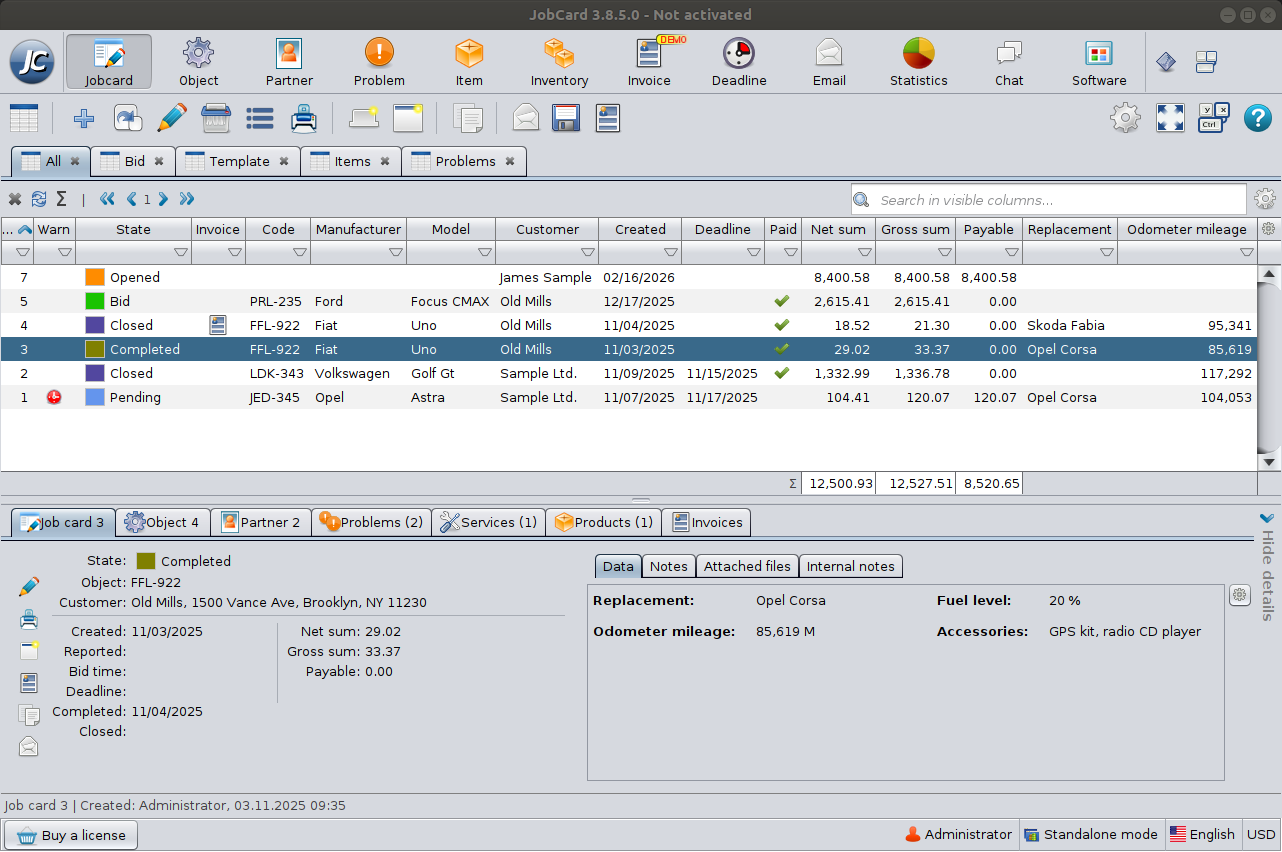
Top Bar – Settings and Tools
The top section of the program contains the main controls used for navigation and configuration.

Main Menu
The Main Menu provides access to:
- Application settings
- User manual
- Product activation
This is the central place for configuring the system and accessing help resources.
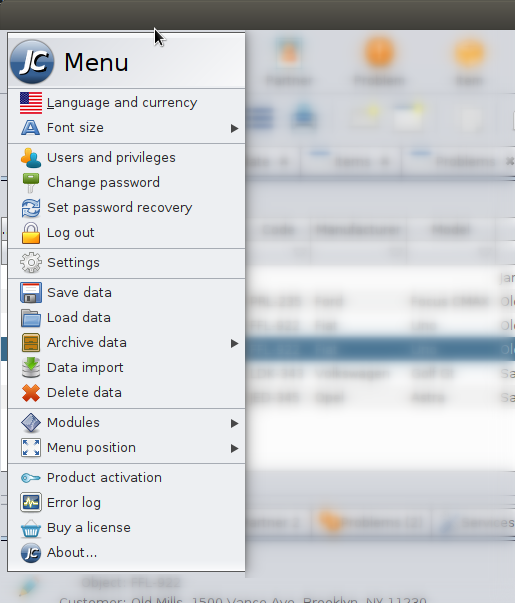
Module Selector
The Module Selector allows you to switch between different parts of the software.
Examples of modules:
- Job cards
- Customers (Partners)
- Inventory
- Invoices
- Statistics
- Chat
Each module represents a specific area of your business workflow.
Toolbar
The Toolbar contains tools related to the currently selected module.
Typical actions include:
- Opening data tables
- Creating a new record
- Editing or deleting records
- Printing
- Exporting data
- Searching or filtering
The available tools change depending on the selected module.
Middle Section – Tables and Records
The middle part of the screen displays a table view of records.
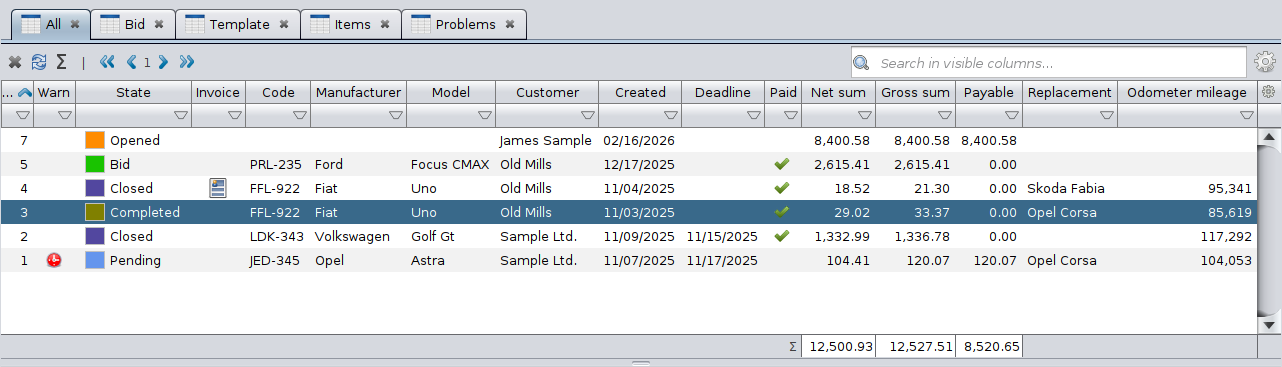
- Each row represents a record (e.g., a job card or customer).
- Columns display key information such as status, customer, dates, and amounts.
- You can:
- Sort and filter data
- Search within columns
- Select records for further actions
This section is used for browsing and managing large amounts of data.
Bottom Section – Selected Record Details
The bottom section shows the details of the currently selected record.
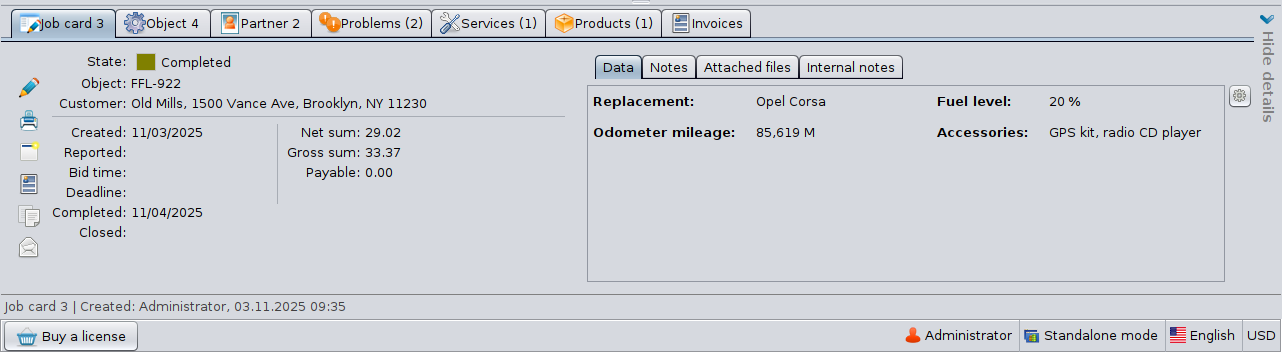
This area is divided into tabs such as:
- Data – custom fields and additional information
- Notes – general notes
- Attached files – documents and images
- Internal notes – internal comments
When you select a record in the table above, its detailed information appears here.
How These Sections Work Together
- Select a module from the top bar
- Choose a record from the middle table
- View or edit details in the bottom section
This structure ensures a clear and efficient workflow for managing your business data.