
Format Settings
The Format Settings section allows you to control how numbers, dates, times, and timestamps are displayed and entered throughout the application. These formats affect how data appears on screen, in input fields, and on printed documents.
Using consistent formats improves readability and helps avoid misunderstandings when working with quantities, prices, and dates.
Accessing Format Settings
To view or change Format settings:
- Open the Main Menu
- Go to Settings
- Select Format
This opens the Format settings window, where you can customize formats.
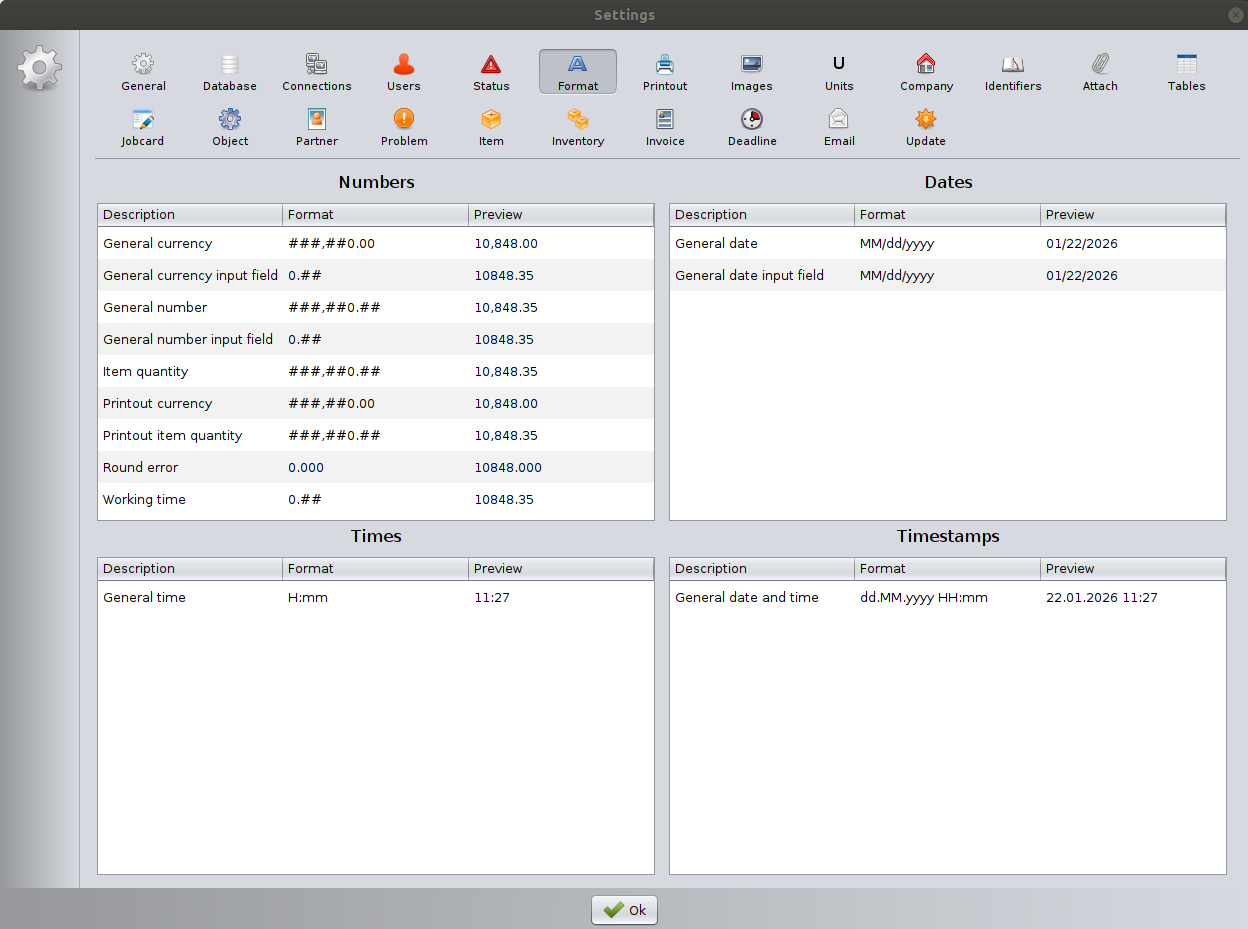
Numbers
The Numbers section defines how numeric values are displayed and entered in the system. Each row represents a specific type of numeric value used by the application.
The preview reflects how the value is interpreted after entry
General currency
Controls how currency values are displayed in most views.
- Example format:
###,##0.00 - Used for prices, totals, and monetary values
General currency input field
Defines how currency values are entered by the user.
- Allows flexible input while maintaining consistent storage
- For easier data entry, it is recommended to use a format without thousand separators (for example, using
#instead of###,###).
General number
Defines the display format for non-currency numeric values.
- Used for general calculations and numeric fields
- Supports thousand separators and decimal precision
General number input field
Controls how general numeric values are entered.
- Helps ensure consistent data entry
- Reduces input errors by enforcing numeric formatting
Item quantity
Defines the format for quantities of items.
- Used in inventory, invoices, and job-related records
- Supports decimal quantities where needed
Printout currency
Defines how currency values appear on printed documents.
- Used on invoices, reports, and other printouts
- Can differ from on-screen formatting if required by local standards
Printout item quantity
Controls how item quantities appear on printed documents.
- Ensures clarity and consistency in printed records
Round error
Defines the format used for rounding differences.
- Typically uses more decimal places
- Helps maintain accuracy in financial calculations
Working time
Controls the numeric format used for working time values.
- Commonly used for labor time or service duration
- Supports fractional values where applicable
Dates
The Dates section controls how dates are displayed and entered.
General date
Defines the date format used throughout the application.
- Example:
MM/dd/yyyy - Affects lists, forms, and printed output
General date input field
Defines how dates are entered by the user.
- Matches the general date format
- Ensures consistent interpretation of entered dates
Times
The Times section defines how time values are displayed.
General time
Controls the format for time values.
- Example:
H:mm - Used for timestamps, working hours, and scheduling
Timestamps
Defines the format of the record creation date and time.
General date and time
Controls the format for date and time together.
- Example:
dd.MM.yyyy HH:mm - Used in logs, records, and detailed views
Format Preview
Each format setting includes a Preview column.
- The preview shows how a sample value will look with the selected format.
- Use this to verify that the format meets your expectations before saving.
Best Practices
- Use date and time formats that match your regional standards.
- Keep input formats consistent with display formats to avoid confusion.
- Adjust printout formats if official documents require a specific appearance.
- Avoid excessive decimal precision unless required for calculations.
Saving Changes
Click OK to save your format settings and apply them across the application.
Important Note
Changing format settings affects how values are displayed and entered, but it does not modify the underlying stored data. Existing records remain unchanged; only their presentation is updated.