
General Settings
The General Settings section allows you to customize the basic appearance and behavior of the application. These options help adapt the software to your screen, workflow, and regional preferences.
To view or change these settings:
- Open the Main Menu
- Go to Settings
- Select General
This opens the General settings window.
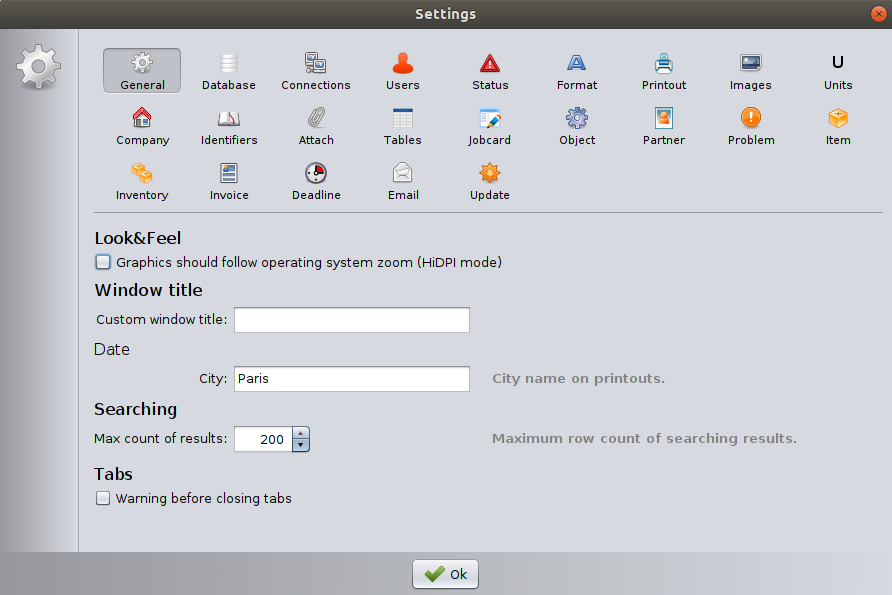
Look & Feel
This section controls how the application is displayed on your screen.
Graphics should follow operating system zoom (HiDPI mode)
When this option is enabled, the application adapts its graphical elements to the operating system’s zoom or scaling settings.
- Recommended for high-resolution displays (HiDPI / Retina screens).
- Improves readability of text and icons.
- Disable this option only if you experience display or scaling issues.
Window Title
Custom window title
This field allows you to define a custom title for the application window.
- The entered text appears in the title bar of the program.
- Useful if multiple instances or environments are used (e.g. Office, Warehouse, Test system).
- Leaving this field empty keeps the default window title.
City
This field defines the city name used on printed documents.
- The city name appears on printouts such as invoices and reports.
- Enter the official city name used by your company.
- Example: Paris, London, Budapest
Searching
Maximum number of results
This setting limits how many rows are displayed in search results.
- Example: 200 means up to 200 records will be shown.
- Lower values can improve performance on slower systems.
- Higher values allow more results to be displayed at once.
Choose a value that balances performance and usability.
Tabs
Warning before closing tabs
When enabled, the software displays a warning message before closing a tab.
- Helps prevent accidental loss of unsaved changes.
- Recommended if you frequently work with multiple open tabs.
- Disable if you prefer faster tab closing without confirmation.
Saving Changes
Click OK to save your settings and apply the changes immediately.