
Notifications
The Notifications feature lets the software alert you when specific events occur or require your attention. These messages help you stay informed about important tasks, potential issues, and required actions without having to monitor everything manually.
Notifications can appear as pop-up alerts within the application and may also generate log entries or reminders, depending on your configuration.
Notification Types
The software supports several types of notifications, including (but not limited to):
- Missing Required Fields
Alerts you when required information is missing in a record before it can be saved or processed. - Upcoming Deadlines
Notifies you when a job or task deadline is approaching. - Overdue Items
Warns when jobs, invoices, or tasks are past their due date.
Each notification type helps ensure you act promptly where needed.
By setting up and using notifications properly, you reduce the chance of missing key events or steps in your daily workflow.
Accessing Notification Settings
To view or change how notifications behave:
- Open the Main Menu
- Go to Settings
- Select Status
This opens the Notifications settings window, where you can enable, disable, or customize alerts.
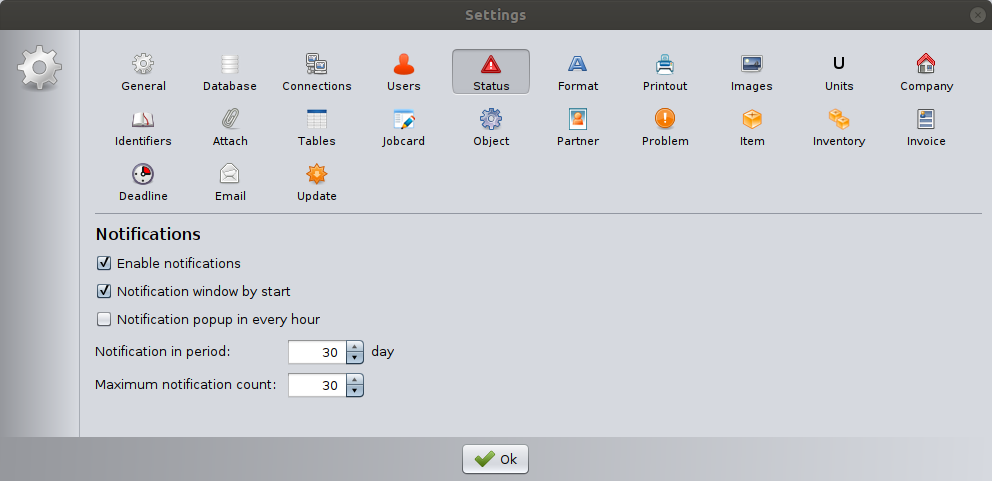
Notifications Settings Explained
These settings control how and when the software notifies you about upcoming or overdue deadlines. Notifications help ensure that important tasks are not forgotten and that you can quickly open the related records directly from the alert.
Enable notifications
When this option is enabled, the notification system is active.
- The software checks for upcoming and overdue deadlines.
- Notifications are generated based on the settings below.
If this option is disabled, no notifications will be displayed, regardless of other settings.
Notification window at startup
When enabled, a notification window appears a few seconds after the software starts.
- The window shows a list of current notifications.
- Clicking on a notification opens the related record automatically.
- This allows you to immediately review important tasks when you start the program.
Notification pop-up every hour
When enabled, the software displays a notification pop-up once every hour, provided there are active notifications.
- The pop-up appears in the bottom-right corner of the screen.
- This option ensures regular reminders during the workday.
- Hourly notifications are shown only when notifications are enabled.
Notification period
This setting defines how far into the future the software should check for deadlines.
- Example: 30 days means you will be notified about deadlines occurring within the next 30 days.
- Overdue deadlines from the past are always included if a reminder is set for the date.
Increasing this value provides earlier warnings, while decreasing it reduces the number of notifications.
Maximum notification count
This setting limits how many notifications can appear in notification lists.
- Example: 30 means a maximum of 30 notifications can be displayed.
- If more notifications exist, only the most important ones are shown.
This helps keep notification lists readable and prevents information overload.
Saving the settings
Click OK to save your notification settings and apply the changes.
Troubleshooting Notifications
If you are not seeing expected alerts:
- Make sure the notification is enabled in the settings.
- Verify the conditions for the notification are actually present (e.g., a deadline date has been set).
If alerts still do not appear as expected, check with your system administrator or support team.