
Table Settings
The Table Settings section allows you to control how data tables behave throughout the application. These settings affect record listing views such as customers, job cards, invoices, inventory, and other modules.
Adjusting these options helps optimize usability, readability, and workflow speed.
Accessing Table Settings
To view or change these settings:
- Open the Main Menu
- Go to Settings
- Select Tables
This opens the Table settings window.
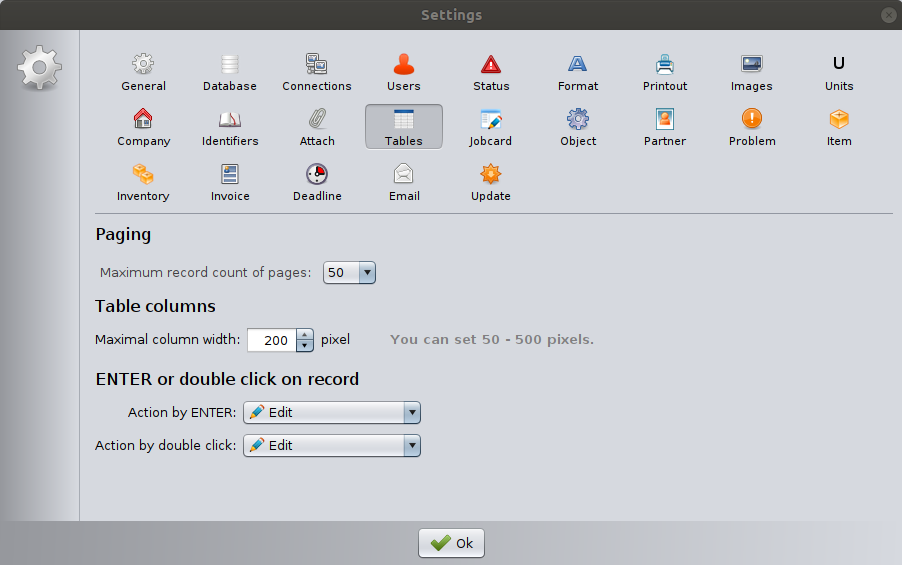
Paging
Maximum record count of pages
This setting defines how many records are displayed per page in data tables.
- Example: 50 means that each page will show up to 50 records.
- If more records exist, they will be divided into multiple pages.
Why this matters
- Lower values improve performance on slower computers.
- Higher values reduce the need to switch between pages.
- Very high values may slow down table loading in large databases.
Recommended value: 30–100 records per page, depending on system performance.
Table Columns
Maximal column width
This setting defines the maximum width of columns in data tables.
- Measured in pixels.
- Adjustable between 50 and 500 pixels.
- Default example: 200 pixels.
Why this matters
- Prevents extremely wide columns from breaking table layout.
- Keeps tables visually structured and readable.
- Helps maintain consistency across different screen sizes.
If columns appear too narrow or too wide, adjust this value accordingly.
ENTER or Double Click on Record
This section defines what happens when you:
- Press the ENTER key on a selected record
- Double-click a record with the mouse
You can configure these actions independently to match your preferred workflow.
Available Actions
For both ENTER and double-click, you can choose one of the following:
- Do nothing
No action is performed when the record is selected. - Edit
Opens the selected record in edit mode.
This is the most commonly used option for daily work. - Open in new tab
Opens the selected record in a new tab within the application window.
Useful when working with multiple records simultaneously. - Open in new window
Opens the selected record in a separate window.
Helpful when using multiple monitors or comparing records side by side.
Practical Examples
- ENTER = Edit, Double-click = Edit
→ Fast editing workflow (recommended for service environments). - ENTER = Open in new tab, Double-click = Edit
→ Flexible workflow when reviewing multiple records. - ENTER = Do nothing, Double-click = Edit
→ Prevents accidental record opening when navigating with the keyboard.
Saving Changes
Click OK to apply the new table settings.
Changes take effect immediately across all modules using table views.
Best Practices
- Set record count based on database size and computer performance.
- Keep column width reasonable to maintain readability.
- Use ENTER and double-click shortcuts to match your daily workflow.
- Review settings if tables feel slow or difficult to navigate.
Important Notes
- These settings apply globally for the current computer.
- In network mode, table behavior may differ per workstation.
- Changes do not affect existing data, only how it is displayed.